Support & FAQ
Setup guides, frequently asked questions, and contact info.
Getting started
-
1
Connect your Tesla account
Open GuestKeyTS and tap Connect Tesla. This opens Tesla's official login page where you sign in directly with Tesla. GuestKeyTS never sees or handles your password — the entire login happens on Tesla's servers using OAuth.
-
2
Select your vehicle
After connecting, the app shows the vehicles on your Tesla account. Tap the one you want to manage and it's added to your dashboard.
-
3
Install the virtual key
The app will prompt you to enroll GuestKeyTS's virtual key on your Tesla. Tap the link to open the Tesla app to confirm. On newer Teslas this can be done entirely in the Tesla app; older models may require you to tap your key card on the center console. This is a one-time step required by Tesla for any third-party app to send vehicle commands.
-
4
Create an invite
Choose a name for the guest, set how long access should last, and toggle which controls the guest is allowed to use. The app generates an invite code and QR code you can share.
-
5
Share the code
Send the invite code or QR to your guest via text, AirDrop, or any method you prefer.
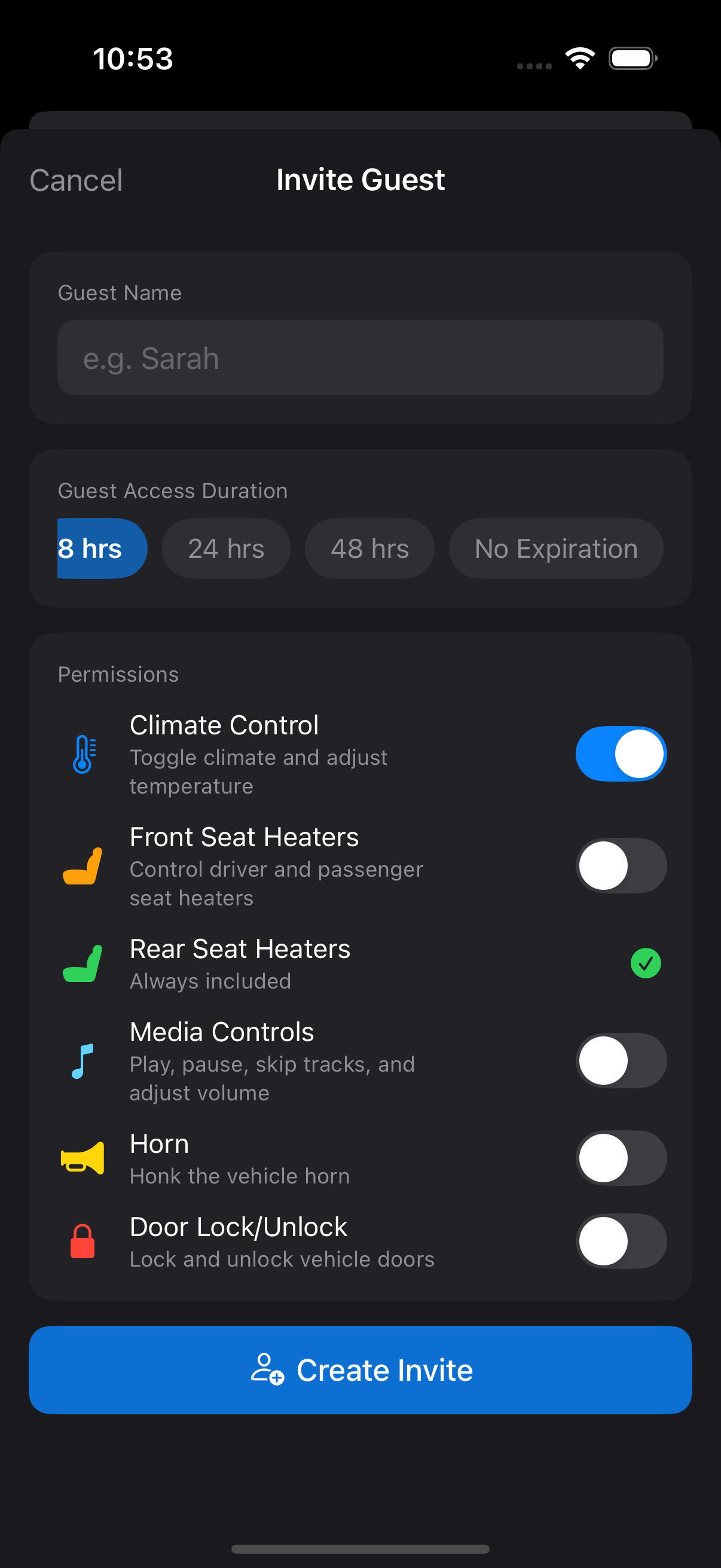
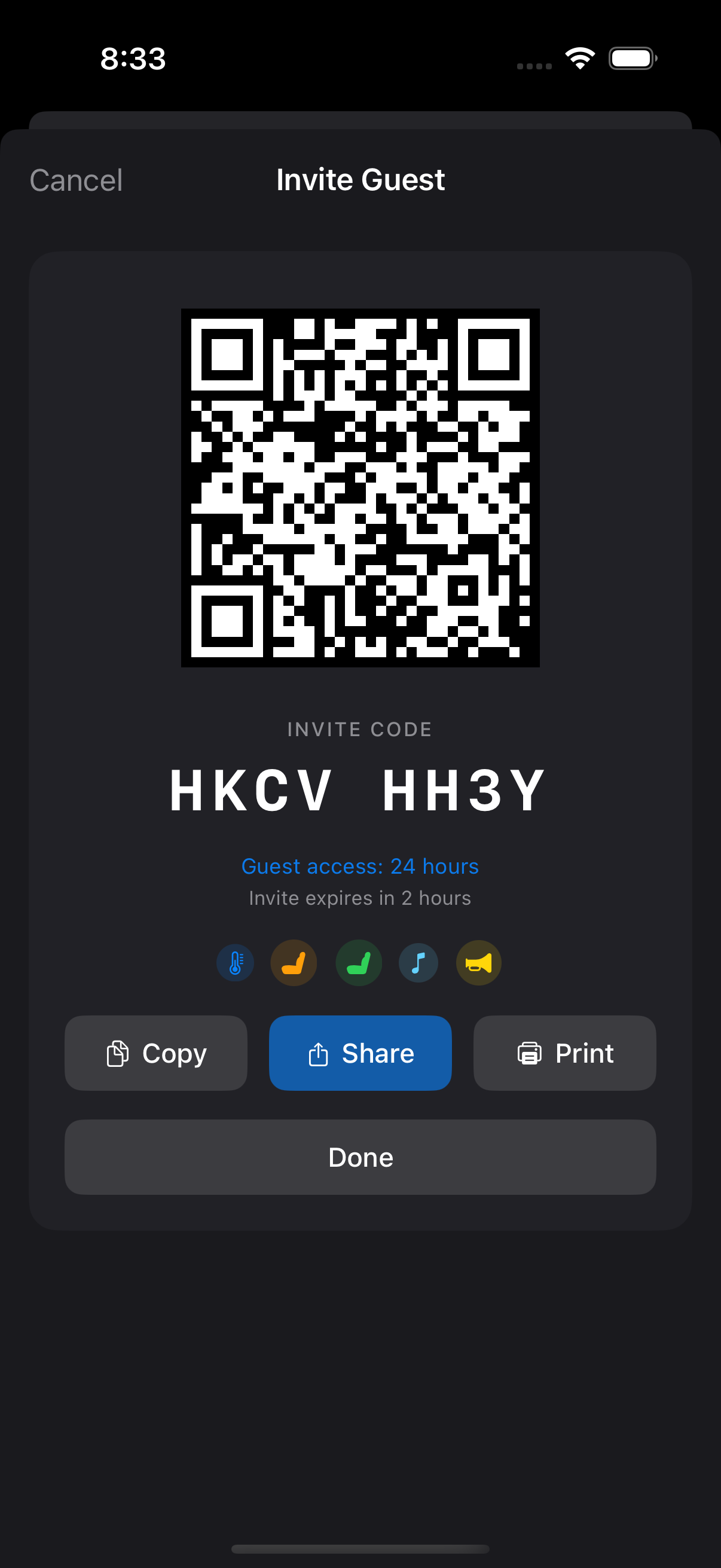
Set permissions and duration, then share the generated code
Joining is instant
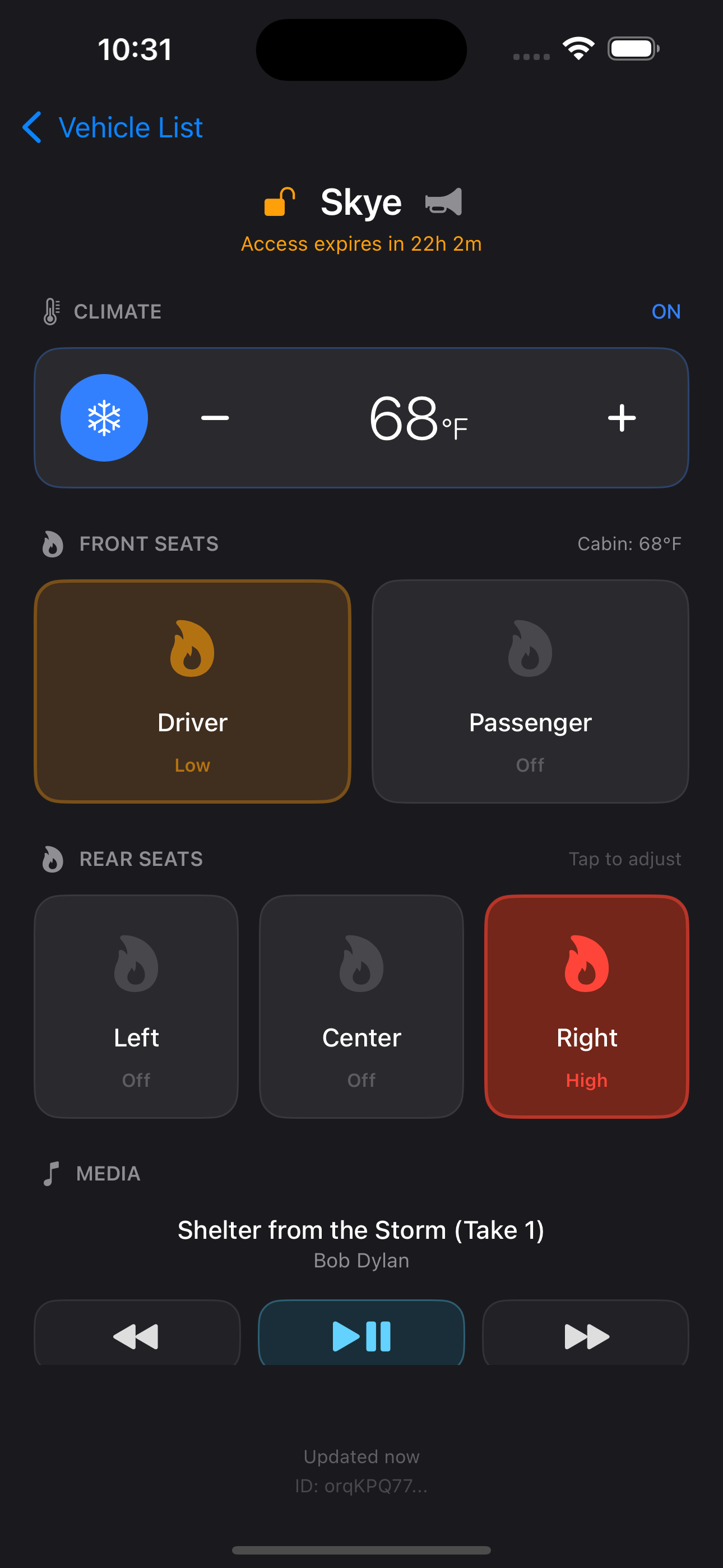
The guest opens GuestKeyTS on their iPhone, enters the invite code or scans the QR, and immediately gets access to the controls the owner selected. No Tesla account, no email, no sign-up.
About GuestKeyTS
What is GuestKeyTS?
GuestKeyTS is an iOS app that lets Tesla owners share limited vehicle comfort controls — climate, seat heaters, media, and horn — with guests. Owners create invite codes with specific permissions and time limits, and guests use those codes to control the vehicle without needing a Tesla account.
How does guest access work?
The owner creates an invite in the app by choosing a name, setting a time limit, and toggling which controls the guest can use. This generates an invite code and QR code. The guest opens GuestKeyTS on their iPhone, enters the code or scans the QR, and immediately gets access to the allowed controls. No Tesla account or sign-up is required for guests.
What controls can a guest use?
Owners choose which controls each guest can access. The available controls are climate (A/C, heat, temperature), seat heaters (individual seat positions), media (volume and playback), and horn. Each is independently toggled per guest. Guests cannot drive the vehicle, open the trunk, or access location data.
Is my Tesla password stored by GuestKeyTS?
No. When you connect your Tesla, the app opens a secure browser window directly to Tesla's website (auth.tesla.com). Your credentials are entered on Tesla's own page and sent only to Tesla's servers. GuestKeyTS never sees, receives, or stores your password. After sign-in, Tesla provides a temporary OAuth token that the app uses to send commands.
Can multiple owners connect the same vehicle?
Yes. If two or more people have the same vehicle on their Tesla account (e.g. both parents), each can register it in GuestKeyTS. All owners see the same guest list and can independently manage access.
Does the guest need a Tesla account?
No. Guests only need the GuestKeyTS app and the invite code or QR code. No Tesla account, email, or sign-up is required.
Can a guest drive my car?
No. GuestKeyTS only provides access to comfort controls — climate, seat heaters, media, and horn. Driving requires a Tesla key card, phone key, or key fob.
Can I use GuestKeyTS on multiple devices?
Yes. Install GuestKeyTS on your iPhone and iPad and register the same vehicle on each. They'll stay in sync.
Can guests scan the QR code without installing the app?
Yes — scanning the QR code with the default camera app opens a web version of GuestKeyTS in the browser. Guests can use it to send commands without installing anything. However, performance is significantly slower than the native app. Commands may take longer to reach the vehicle and the interface won't feel as responsive. For the best experience, we strongly recommend guests download the full GuestKeyTS app.
What data does GuestKeyTS collect?
The minimum needed to function: your vehicle identifier (VIN), the OAuth tokens Tesla provides for sending commands, guest permission records, and pseudonymous command logs for security auditing. As of the current version, GuestKeyTS does not collect email addresses, phone numbers, location data, or driving history. See our Privacy Policy for full details.
Common issues
What is the virtual key and why is it needed?
Tesla requires all third-party apps to install a virtual key before they can send vehicle commands. During setup, GuestKeyTS prompts you to open the Tesla app and confirm the key. On newer Teslas this is done entirely in the Tesla app; older models may require you to tap your key card on the center console. This is a one-time step required by Tesla for any third-party app to send vehicle commands.
I'm getting "Unable to Grant Third-Party Access" when adding the virtual key. What do I do?
Only the primary owner on the Tesla account can add a third-party virtual key through the Tesla app. If you're a co-owner, or if your vehicle is an older model that doesn't support in-app key enrollment, you can add the key by tapping your black Tesla key card behind the cup holders when prompted.
Make sure you're opening the enrollment link on the same phone that has the Tesla app installed, and that Bluetooth is enabled. You also need to be near the vehicle during enrollment.
How do I manually add the virtual key?
Open this link on the iPhone that has the Tesla app installed: Add GuestKeyTS Virtual Key. You must be the primary owner on the Tesla account, have Bluetooth enabled, and be near the vehicle. The Tesla app will open and walk you through confirming the key.
Bluetooth proximity isn't working. What should I check?
Both the owner's and guest's phones need Bluetooth turned on. On each phone, go to Settings → Privacy & Security → Bluetooth and make sure GuestKeyTS is toggled on.
The app must also be open on the owner's phone. It can be running in the background, but don't force-quit or kill the app if proximity is required for a guest. If the app has been killed, the guest will see "Vehicle owner must be nearby" and commands will be blocked until the owner reopens the app.
What happens if the vehicle is asleep?
Tesla vehicles go to sleep to conserve battery. If a vehicle is asleep when a command is sent, GuestKeyTS will automatically wake the vehicle before sending the command. This happens seamlessly — just tap the control you want and the app handles the rest.
A command failed or nothing happened. What should I do?
Check that the vehicle is online (not asleep) and has cellular connectivity. If the vehicle is in an underground garage or area with poor signal, commands may not reach it. You can also try waking the vehicle from the Tesla app first. If the problem persists, the vehicle's internet connection or Tesla's servers may be temporarily unavailable.
Guests and vehicles
What happens when a guest's access expires?
Controls stop working immediately. The guest is notified that access has ended and they're removed from the active guest list. No action needed from the owner.
How do I revoke a guest's access?
Open the owner dashboard, find the guest in your list, and delete them. Their access is revoked immediately — any commands they try to send after that will be rejected.
How do I disconnect my vehicle from GuestKeyTS entirely?
You can remove your vehicle from the app at any time through the owner dashboard. This revokes all guest access and deletes the vehicle's data from the service.
For an immediate, complete cutoff, change your Tesla account password. This instantly invalidates all OAuth tokens and disconnects GuestKeyTS — and any other third-party app — from your vehicle. You can reconnect at any time by signing in again.
Still have a question? Reach out at [email protected] and we'll get back to you.